Deriving New from Current View
The Derive New from Current View options let you create a new 3D volume aligned to the selected viewing angle of the current view. This can be useful in cases in which a dataset was acquired at an angle and you want to align the visual box with the object. The following screen capture shows the visual box of the original dataset compared with the visual box of the derived 3D volume.
Derived (on left) vs original dataset (on right)
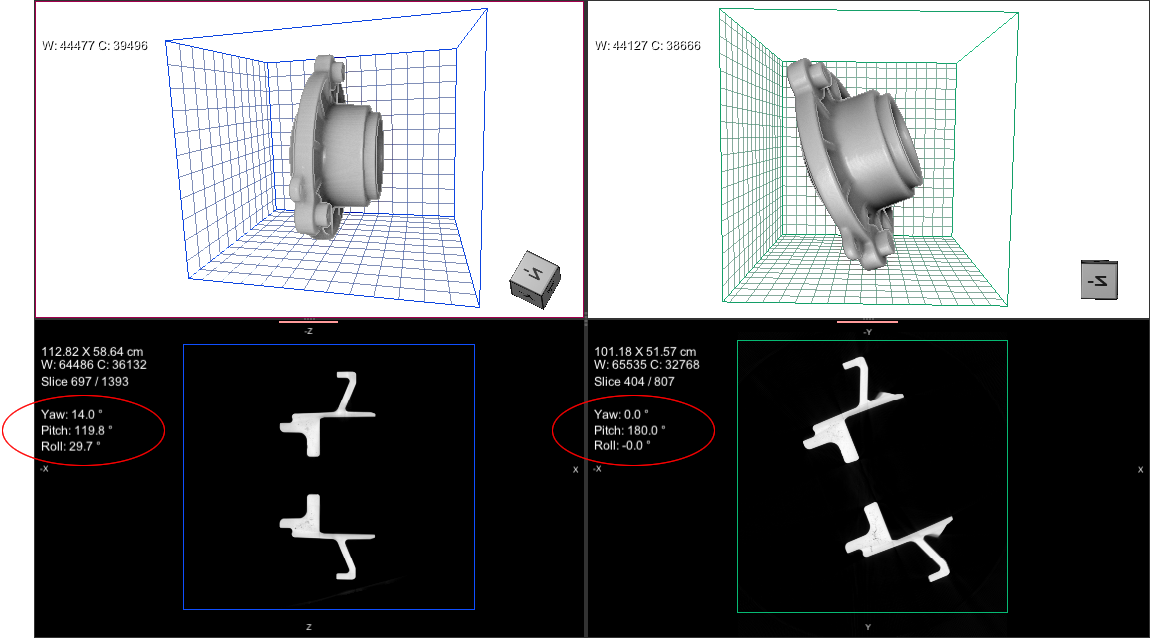
You should note that the 2D image plane view of the derived dataset displays the angle (circled on the bottom left above). This angle corresponds to the viewing angle of the view from which the dataset was derived. The 2D image plane view of the original dataset displays the orthogonal angles (circled on the bottom right above). You should also note that Dragonfly computes multi-planar reformations in the XY, XZ, and YZ orientations using the image plane attributes. This means that reformatted views may not be orthogonal to the image plane.
Reformatted view vs image plane view
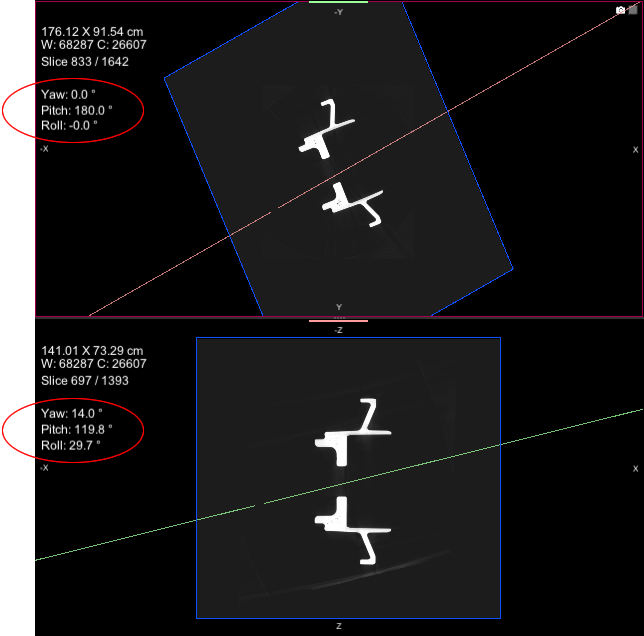
The illustration above shows the viewing angles of the reformatted view (top) and image plane view (bottom). You should note that the reformatted view is not orthogonal to the image plane.
- Select the required 2D view of your dataset.
- Adjust the viewing angle(s), as required.
For example, you can adjust Yaw and Pitch so that the scanned object is displayed at right angles on your screen. You can also use the Walk tool to make your adjustments. See Creating Oblique Views for more information about creating oblique and double-oblique views.
- Right-click the dataset in the Data Properties and Settings panel and then choose one of the following in the pop-up menu:
- Derive New from Current View to derive a new dataset formatted in the current space.
- Derive New from Current View, with Isotropic Spacing to derive a new dataset with isotropic spacing that is formatted in the current space.
The derived 3D volume appears in the Data Properties and Settings panel.
- Export the derived 3D volume, if required (see Exporting Objects).
